
Once Claude is connected, you can ask it to set up your storefront, create products, add cover images and publish your changes. Setup takes about two minutes, and you only need to do it once.
Before you start
- An Oak Store account. Sign in at myoak.store in this browser before you begin.
- A Claude account you can open at claude.ai in the same browser.
- The connection address:
https://myoak.store/api/mcp
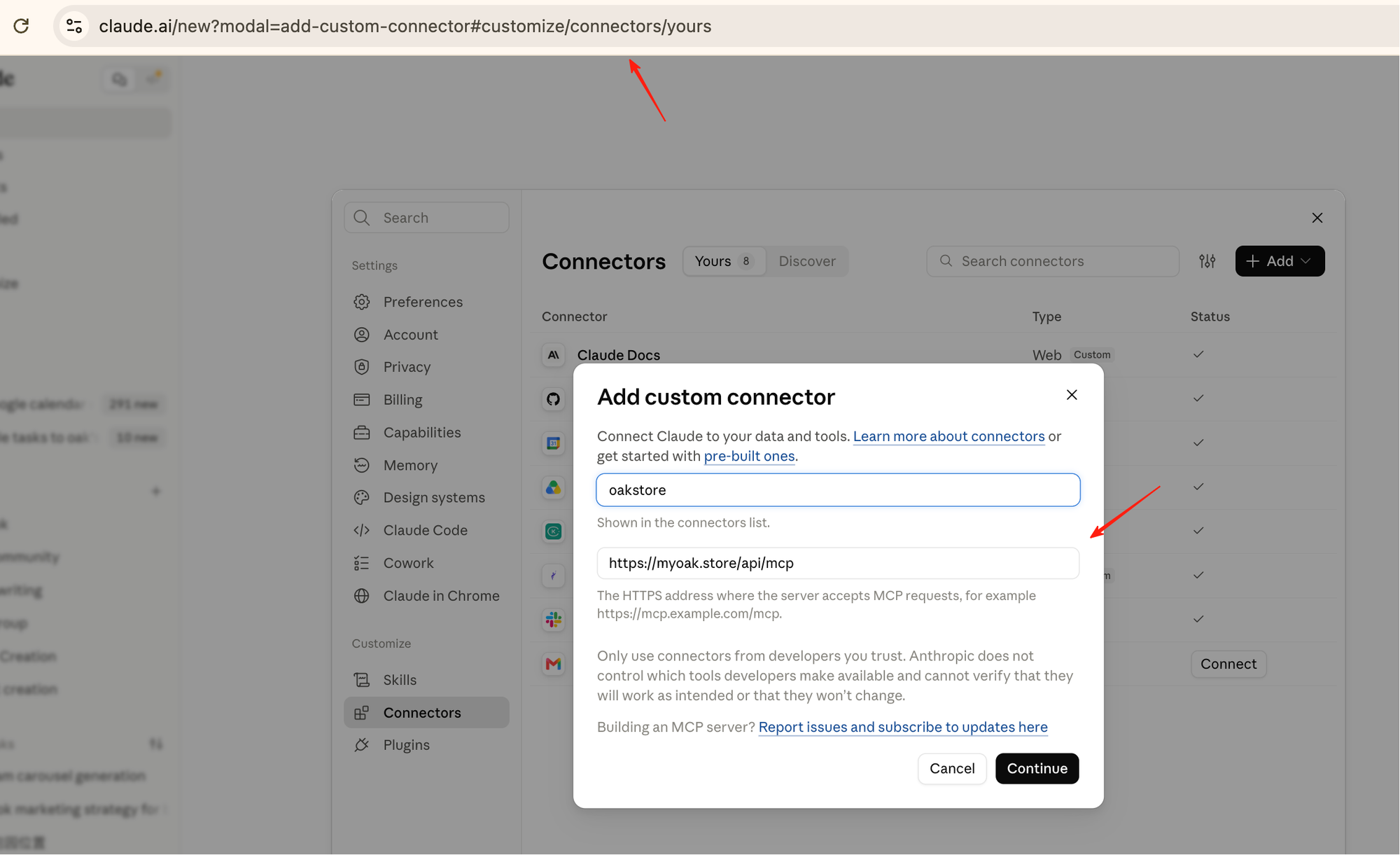
Step 1. Open the connector form
Open this link in the same browser: Add a connector in Claude, opens in a new tab. It opens Claude with the form already showing.
You can also get there yourself: in Claude, open Settings → Connectors, then select Add.
Step 2. Fill in the two fields
| Field | What to enter |
|---|---|
| Name | Oak Store |
| Remote MCP server URL | https://myoak.store/api/mcp |
Then select Continue. Claude lists the connector by its address, myoak.store, whatever you name it.
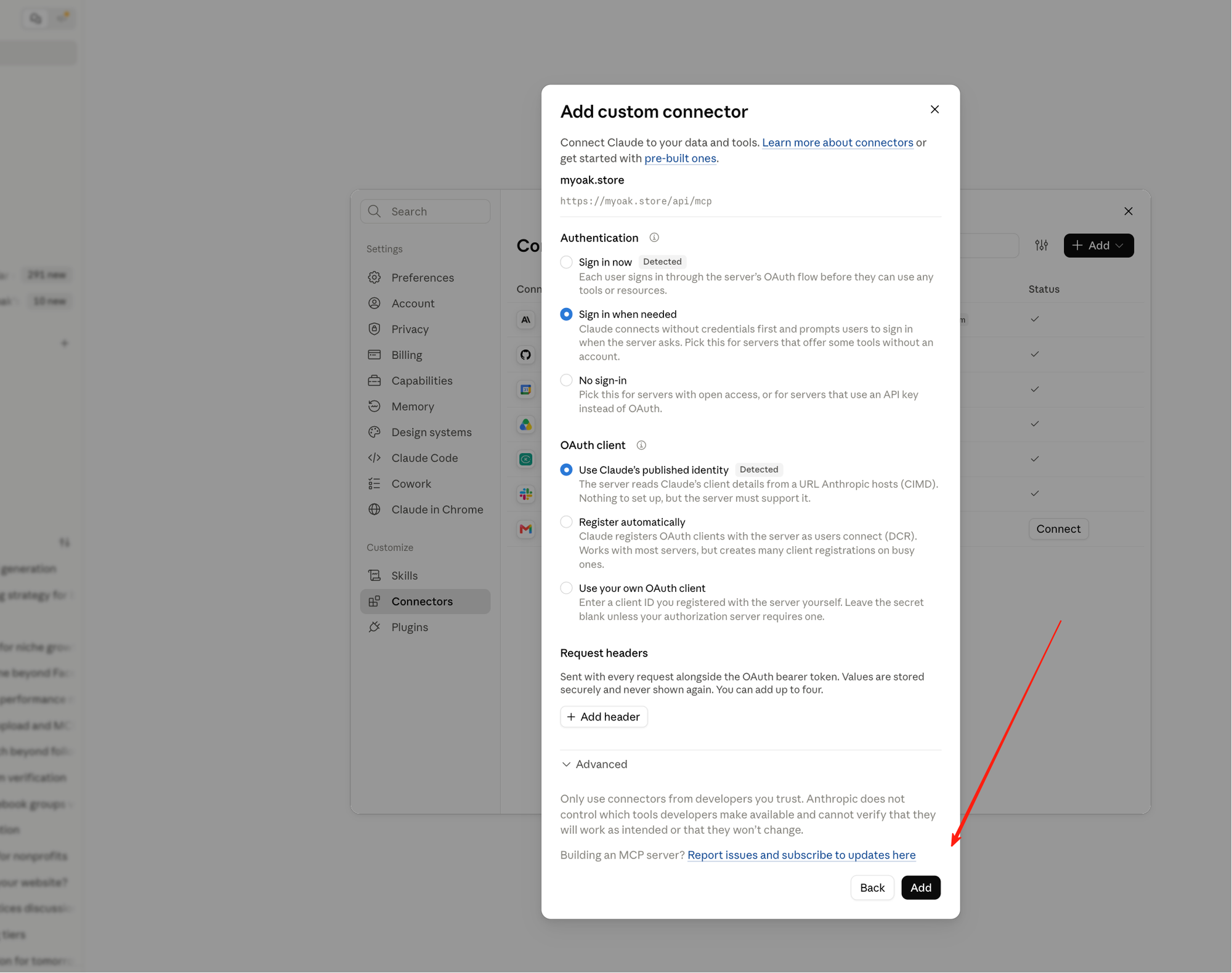
Step 3. Leave the sign-in settings alone
Claude reads the sign-in settings from the address and marks them Detected. Leave Authentication, OAuth client and Request headers as they are, and select Add.
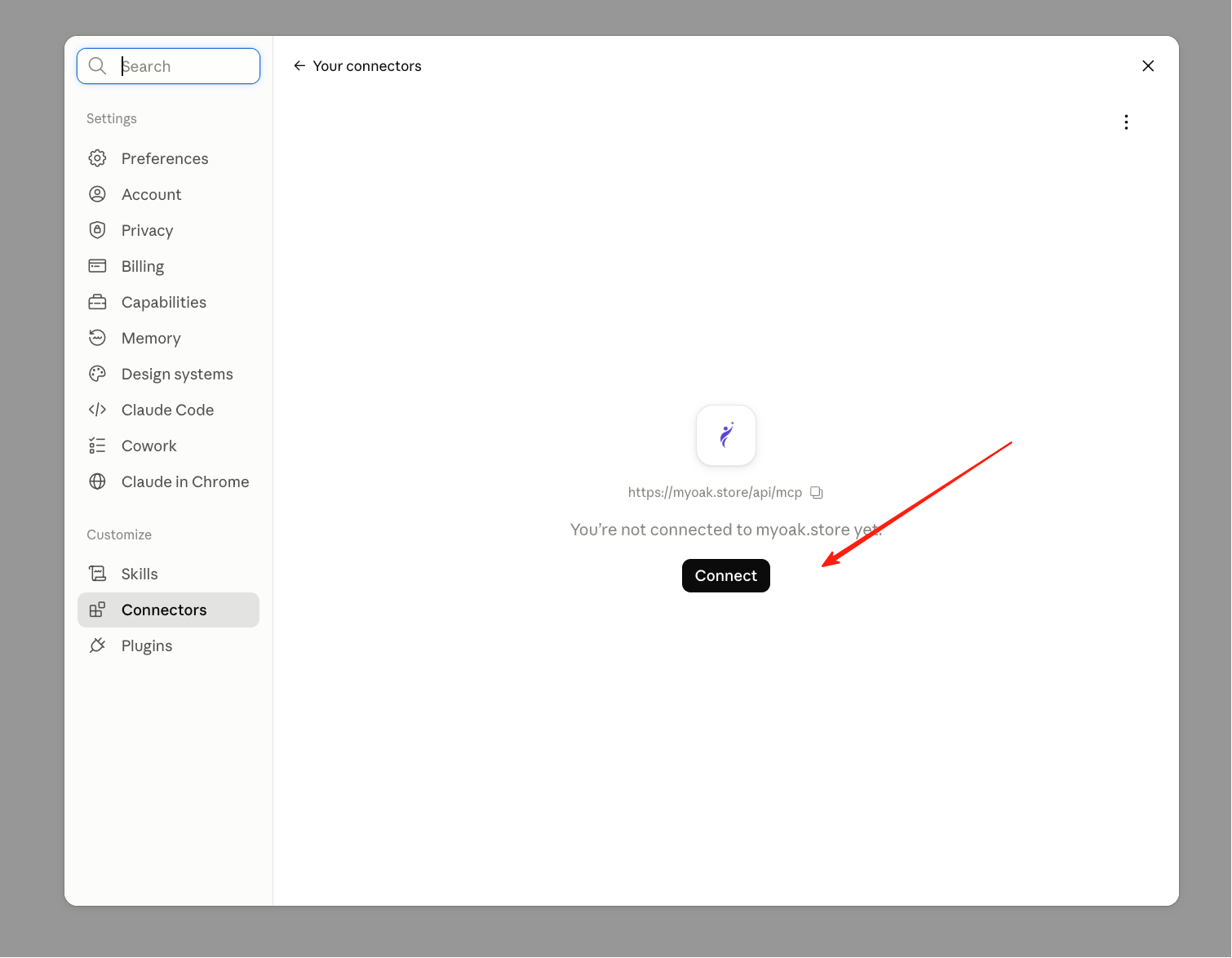
Step 4. Connect
Your connector opens and says you are not connected yet. Select Connect.
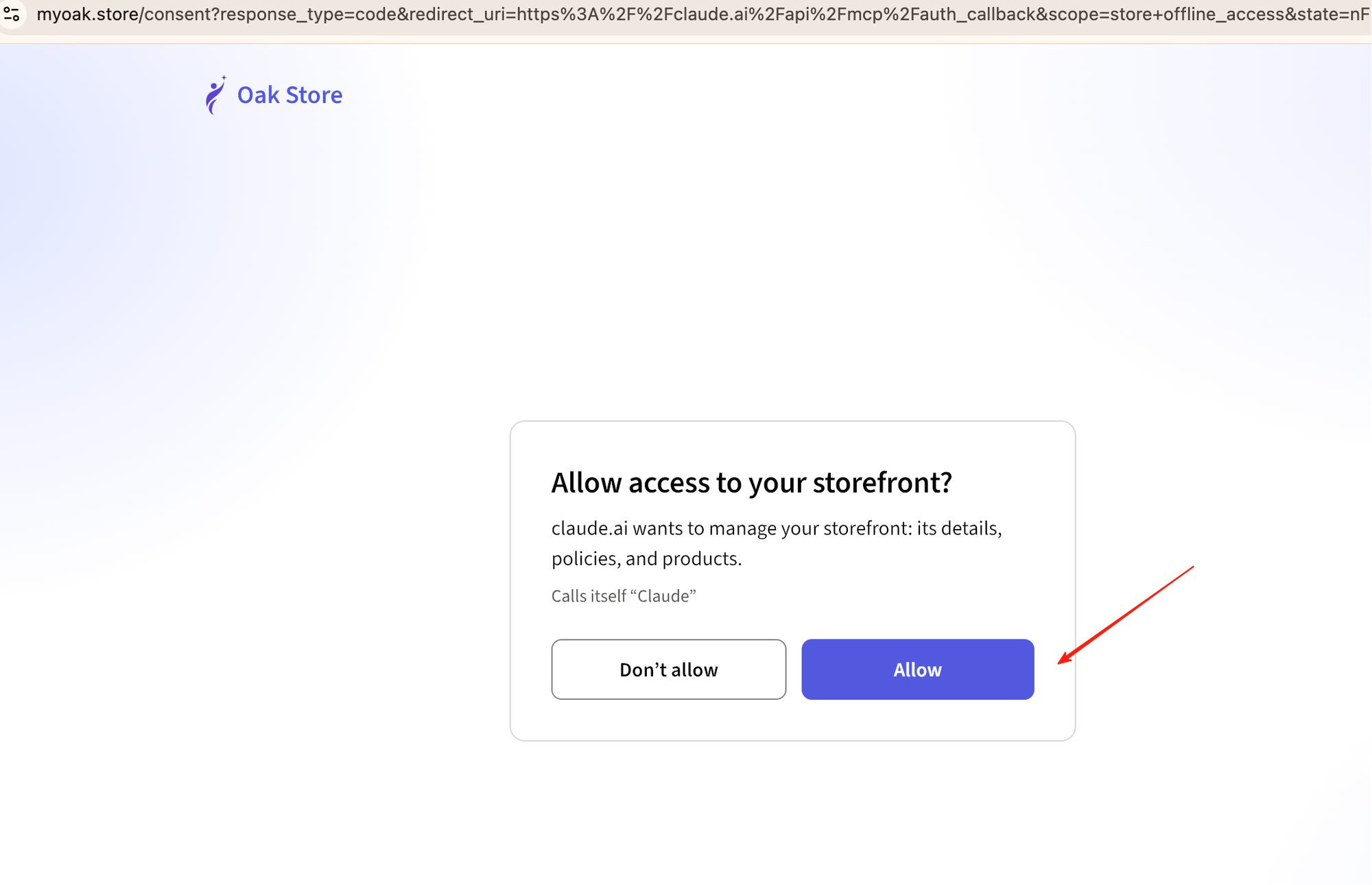
Step 5. Allow access
Oak Store opens and asks whether Claude can manage your storefront. Check that the screen names claude.ai, then select Allow. If Oak Store asks you to sign in, sign in first — the permission screen comes back.
Step 6. Check it worked
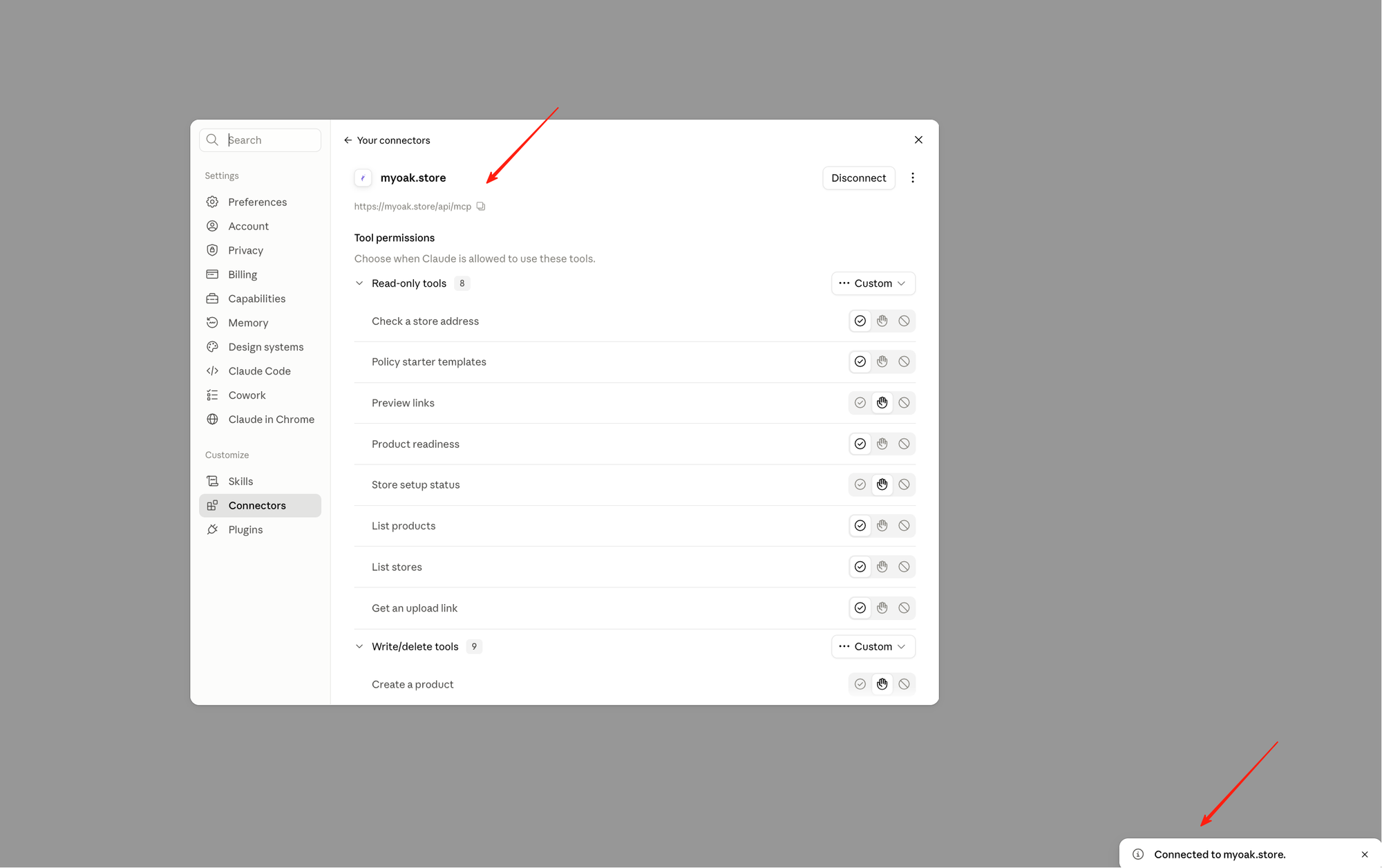
You land back in Claude. The connector now says Connected, and the tools Claude can use are listed underneath. Leave them as they are.
Step 7. Ask Claude about your store
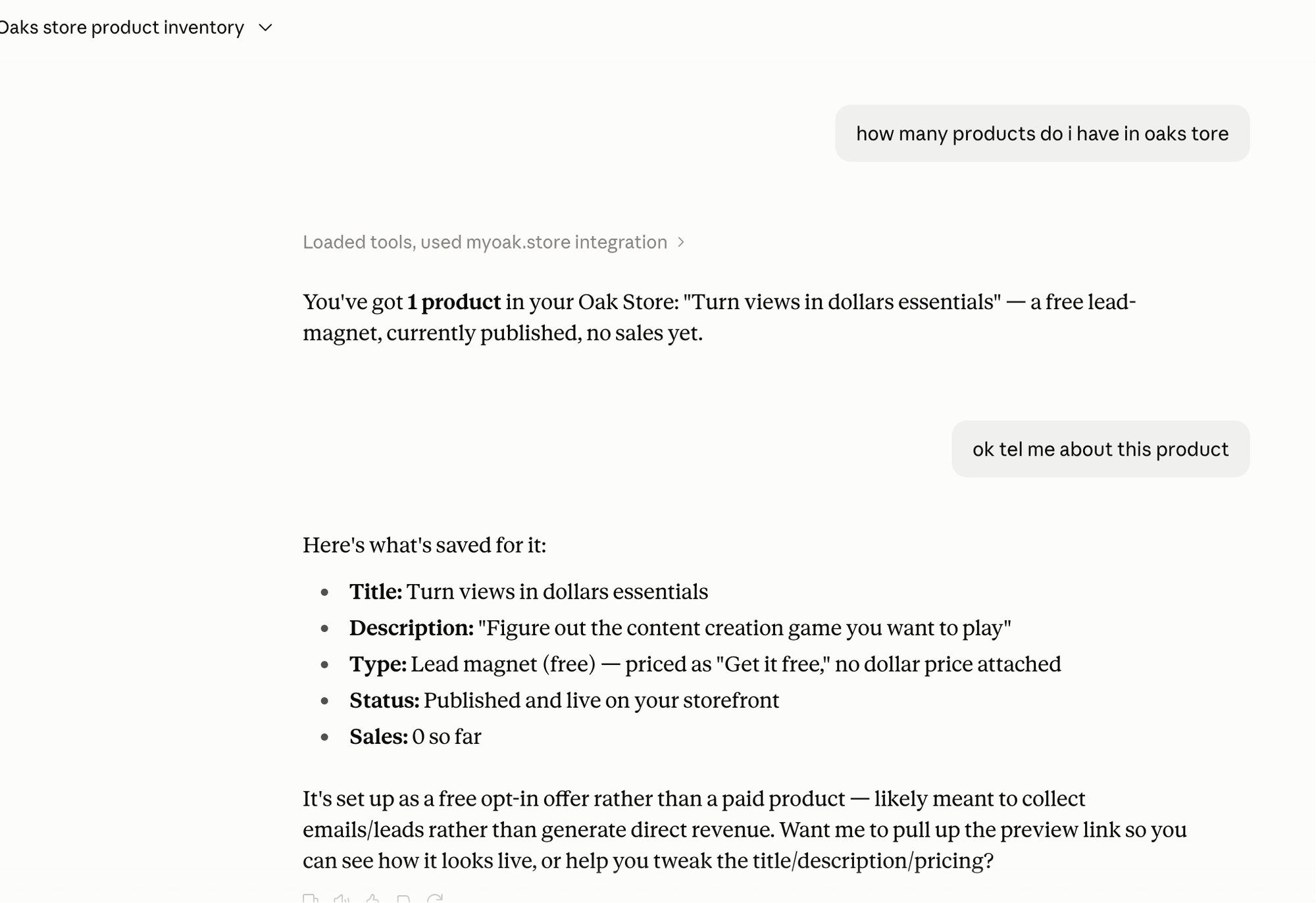
Start a new chat and ask for something only your store knows:
How many products do I have in my Oak Store?
To set the store up from scratch, say “Set up my store.” Claude asks for your store name, your socials and who you help, then drafts the rest and shows you what it made.
What you can ask for
Setting up — “Set up my store.” · “Is the store address 1pcbiz free?” · “What's left before I can publish?”
Products — “Create a paid product called Focus Reset Kit for $12, here's the description…” · “Change the price to $9.” · “Rewrite the description so it's shorter.”
Files — “Use this image as the cover.” If the image is larger than 300 KB, Claude gives you an upload link. Open the link in your browser and choose the image.
Policies — “Draft my terms, privacy and refund policies using my business name and contact email.” You review them before they go live.
Publishing — “Show me the preview.” · “Publish it.” · “Take it off my storefront.”
What it can't do
Claude only gets the tools your storefront hands it, and your money and your buyers are not among them. It can’t reach your payouts or bank details, can’t see who bought from you or their email addresses, and can’t issue refunds — those stay in Stripe, where only you sign in. Your name and photo live under Account, and only you can delete a storefront.
You can disconnect Claude at any time. That stops its access and leaves your storefront, products and sales exactly as they are.
If something goes wrong
| What you see | What to do |
|---|---|
| Claude says it cannot reach the server | Check that the address is exactly https://myoak.store/api/mcp. It should not have a trailing slash or include www. |
| No permission screen appears | You may be signed out of Oak Store. Open myoak.store in the same browser, sign in, then add the connector again. |
| Claude says you need to sign in | The connection has expired. Open Settings → Connectors in Claude, open the myoak.store connector, select Disconnect, then connect it again. |
| Claude answers from memory instead of checking your store | Add “check my Oak Store” to your message, or start a new chat. |
| Your changes are not on your public page | Publishing is a separate step. Ask Claude to publish, then reload your public page. |
| Claude stops part way through several changes | You have reached the limit of 60 changes per minute. Wait one minute, then continue. |
An error mentioning Too Many Requests or 429 while adding the connector | You have added and removed the connection several times in a row. Wait ten minutes, then add it again. |
Removing the connection
Open Settings → Connectors in Claude, open the myoak.store connector and select Disconnect. This removes Claude's access. It does not delete your storefront, products or sales.